Heads up: this guide originally paired Cal.com with Webflow + Wized + Xano. The Cal.com architecture is what matters here, and the same Embed, OAuth and Webhook patterns apply to any modern stack. Today I build these integrations on Next.js + Supabase plus the Cal.com Platform API.
If you need to add scheduling capabilities to Webflow, you've probably looked at tools like Calendly, SavvyCal, or Acuity. They all work, but they all share the same fundamental limitation: they're built for end users, not for developers. That changes completely with Cal.com.
Why Cal.com Stands Apart from the Competition
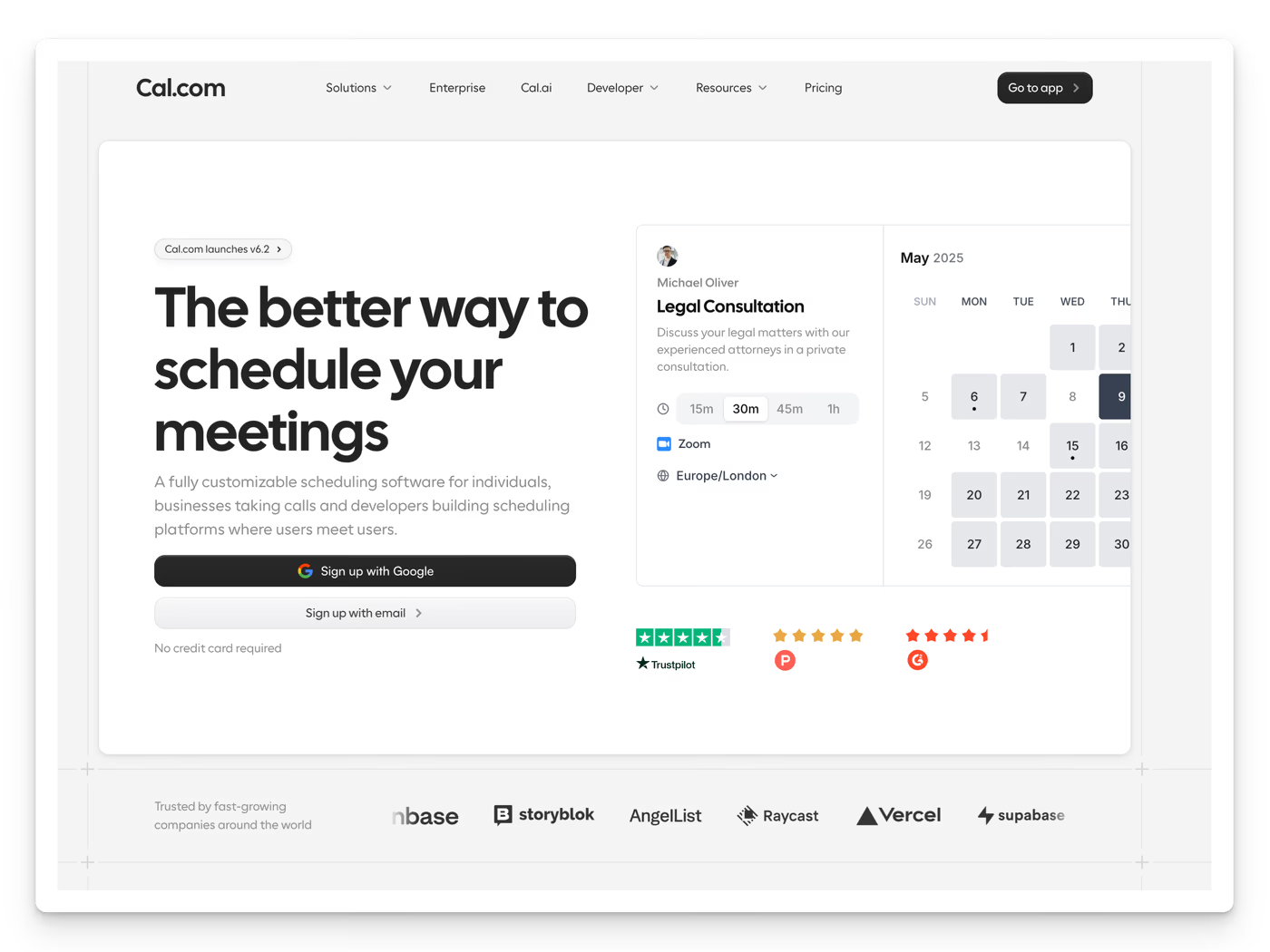
Most scheduling platforms treat developers as an afterthought. Calendly gives you an embeddable widget and a limited API, but you're largely working around the platform, not with it. SavvyCal is elegant but equally opinionated. The underlying model is always the same: the scheduling platform is in charge, and you're just embedding it.
Cal.com takes a completely different approach. It's developer-first by design: open source, a well-documented REST API (v2), and built to be deeply extended.
Three Ways to Use Cal.com in Webflow
This article covers three complementary tools that work together: the Embed (to show a booking UI), OAuth (to connect a user's Cal.com account to your app), and Webhooks (to sync booking events to your backend in real time). You can use them independently or combine them depending on your use case.
1. Embed, The Quickest Way to Show a Booking UI
The fastest way to get started is using Cal.com's native embed. You drop a script into your Webflow page and it renders a booking calendar, either inline or as a popup modal. Your visitors will interact directly with Cal.com's booking flow, which is polished and mobile-friendly out of the box.
Add this script to your Webflow page's custom code (in Page Settings → Before </body> tag):
(function (C, A, L) {
  let p = function (a, ar) {
    a.q.push(ar);
  };
  let d = C.document;
  C.Cal =
    C.Cal ||
    function () {
      let cal = C.Cal;
      let ar = arguments;
      if (!cal.loaded) {
        cal.ns = {};
        cal.q = cal.q || [];
        d.head.appendChild(d.createElement("script")).src = A;
        cal.loaded = true;
      }
      if (ar[0] === L) {
        const api = function () {
          p(api, arguments);
        };
        const namespace = ar[1];
        api.q = api.q || [];
        typeof namespace === "string"
          ? (cal.ns[namespace] = api) && p(api, ar)
          : p(cal, ar);
        return;
      }
      p(cal, ar);
    };
})(window, "https://app.cal.com/embed/embed.js", "init");

Cal("init", { origin: "https://app.cal.com" });
Cal("ui", {
  styles: { branding: { brandColor: "#000000" } },
  hideEventTypeDetails: false,
});
Then add a trigger button in your Webflow canvas with these custom attributes:
<button
  data-cal-link="your-username/your-event"
  data-cal-config='{"layout":"month_view"}'
>
  Book a call
</button>
This approach is ideal for simple use cases where you are the host, a freelancer, a consultant, or a business offering a single type of appointment. Clients book directly into your Cal.com calendar. You can customize the brand color and layout, but the underlying booking experience is Cal.com's.
2. OAuth, Connect a User's Cal.com Account to Your App
If your platform has multiple providers (coaches, doctors, consultants…), you'll want each of them to connect their own Cal.com account so they can manage their own availability, event types, and calendar sync. OAuth makes this possible.
Users click "Connect Cal.com" in your Webflow app and go through a standard authorization flow:
https://app.cal.com/oauth/authorize
  ?client_id=YOUR_CLIENT_ID
  &redirect_uri=https://yourapp.com/cal-callback
  &response_type=code
  &scope=READ_BOOKING,READ_PROFILE
After the user approves, Cal.com redirects back to your app with an authorization code. You exchange it for tokens on your backend:
POST https://app.cal.com/api/auth/oauth/token
{
  "code": "AUTHORIZATION_CODE",
  "client_id": "YOUR_CLIENT_ID",
  "client_secret": "YOUR_CLIENT_SECRET",
  "redirect_uri": "https://yourapp.com/cal-callback",
  "grant_type": "authorization_code"
}
Store the access_token and refresh_token alongside the user record. You can now make Cal.com API calls on behalf of that user, fetching their event types, reading bookings, or displaying their availability in your UI.
Because each user manages their calendar directly in Cal.com, they get access to all of Cal.com's built-in tools: availability rules, Google Calendar sync (to prevent double bookings), custom intake forms, and Stripe payments. Your app simply coordinates the flow, users are fully aware they have a Cal.com account.
3. Webhooks, Sync Booking Events to Your Backend in Real Time
Rather than polling Cal.com's API, you can register webhooks to receive real-time notifications whenever something happens on a calendar. Cal.com sends a POST request to your endpoint for every event.
Cal.com supports a comprehensive set of webhook events:
| Event | When it fires |
|---|---|
BOOKING_CREATED | A new booking is confirmed |
BOOKING_REQUESTED | A booking request is pending approval |
BOOKING_CANCELLED | A booking is cancelled |
BOOKING_RESCHEDULED | A booking is moved to a new time |
BOOKING_REJECTED | A pending booking request is declined |
BOOKING_PAID | Payment for a booking is completed |
BOOKING_PAYMENT_INITIATED | Payment process starts |
BOOKING_NO_SHOW_UPDATED | No-show status is updated |
MEETING_STARTED | A video meeting begins |
MEETING_ENDED | A video meeting ends |
RECORDING_READY | A meeting recording is available |
RECORDING_TRANSCRIPTION_GENERATED | Transcription is ready |
INSTANT_MEETING | An on-demand meeting is triggered |
FORM_SUBMITTED | A booking form is submitted |
FORM_SUBMITTED_NO_EVENT | A standalone form is submitted |
OOO_CREATED | An out-of-office period is set |
AFTER_HOSTS_CAL_VIDEO_NO_SHOW | Host didn't join the video call |
AFTER_GUESTS_CAL_VIDEO_NO_SHOW | Guest didn't join the video call |
Listen to these events on your backend to persist data, trigger automations, send emails, or update your CRM:
// Example webhook handler (Node.js / Express)
app.post("/webhooks/cal", express.json(), async (req, res) => {
  const { triggerEvent, payload } = req.body;

  switch (triggerEvent) {
    case "BOOKING_CREATED":
      await db.bookings.create({
        calBookingId: payload.bookingId,
        userId: getUserByCalEmail(payload.organizer.email),
        startTime: payload.startTime,
        endTime: payload.endTime,
        attendee: payload.attendees[0],
        status: "confirmed",
      });
      break;

    case "BOOKING_CANCELLED":
      await db.bookings.update(
        { status: "cancelled" },
        { where: { calBookingId: payload.bookingId } },
      );
      break;

    case "RECORDING_READY":
      await db.sessions.update(
        { recordingUrl: payload.recordingUrl },
        { where: { calBookingId: payload.bookingId } },
      );
      break;
  }

  res.sendStatus(200);
});
Putting it Together with Webflow, Wized, and Xano
For no-code and low-code builders, a practical stack to combine all three tools is Webflow + Wized + Xano.
Webflow handles your UI, the booking pages, provider dashboards, and connection flows. Wized adds the front-end JavaScript logic to communicate between Webflow and your backend without writing complex client-side code. Xano acts as your backend: it handles the OAuth token exchange, stores user credentials and booking records, and exposes the webhook endpoint that Cal.com posts events to.
A typical multi-provider flow looks like this:
- Provider clicks "Connect your Cal.com account" in your Webflow UI
- Wized initiates the OAuth redirect to Cal.com
- The provider authorizes access; Cal.com redirects back with a code
- Xano exchanges the code for tokens and stores them
- Clients visit the provider's booking page and use the Cal.com embed to book
- Cal.com fires webhook events to Xano, which saves them to your database
- Wized fetches booking data from Xano and Webflow displays it in the provider dashboard
Real-World Use Cases
Coaching marketplaces, Each coach connects their Cal.com account via OAuth. Clients find a coach and book a session through the embed on their profile page. BOOKING_PAID triggers commission logic in Xano. RECORDING_READY makes session replays available in the client's dashboard.
Telemedicine platforms, Doctors set their availability directly in Cal.com and sync their Google Calendar. Patients book appointments via the embed. BOOKING_CREATED webhooks update medical records and queue appointment reminders.
Legal or consulting platforms, Consultants use Cal.com's built-in intake forms to collect pre-consultation data. FORM_SUBMITTED pushes that data into Xano before the meeting even happens.
Why This Beats Building Your Own
Scheduling is one of those domains that looks simple until you're deep in timezone handling, buffer times, calendar sync conflicts, payment flows, and notification logic. Cal.com already solved all of this, and it serves millions of bookings.
By combining the embed, OAuth, and webhooks, you get a complete scheduling infrastructure for your platform without building any of it from scratch. Cal.com handles the complexity; you focus on your core product.